MCP connections
Connect an assistant and test access
Before you start: use the desktop app, have a compatible client installed or available, and decide which board or part of the library it will have access to. The options include Claude Code, Claude Desktop, Cursor, VS Code, Codex, Windsurf and Gemini CLI.
- Open VectorBoard's agent connections screen. Find it with the command search when needed.
- Choose the client and click Connect. Follow the setup shown and accept only the intended scope.
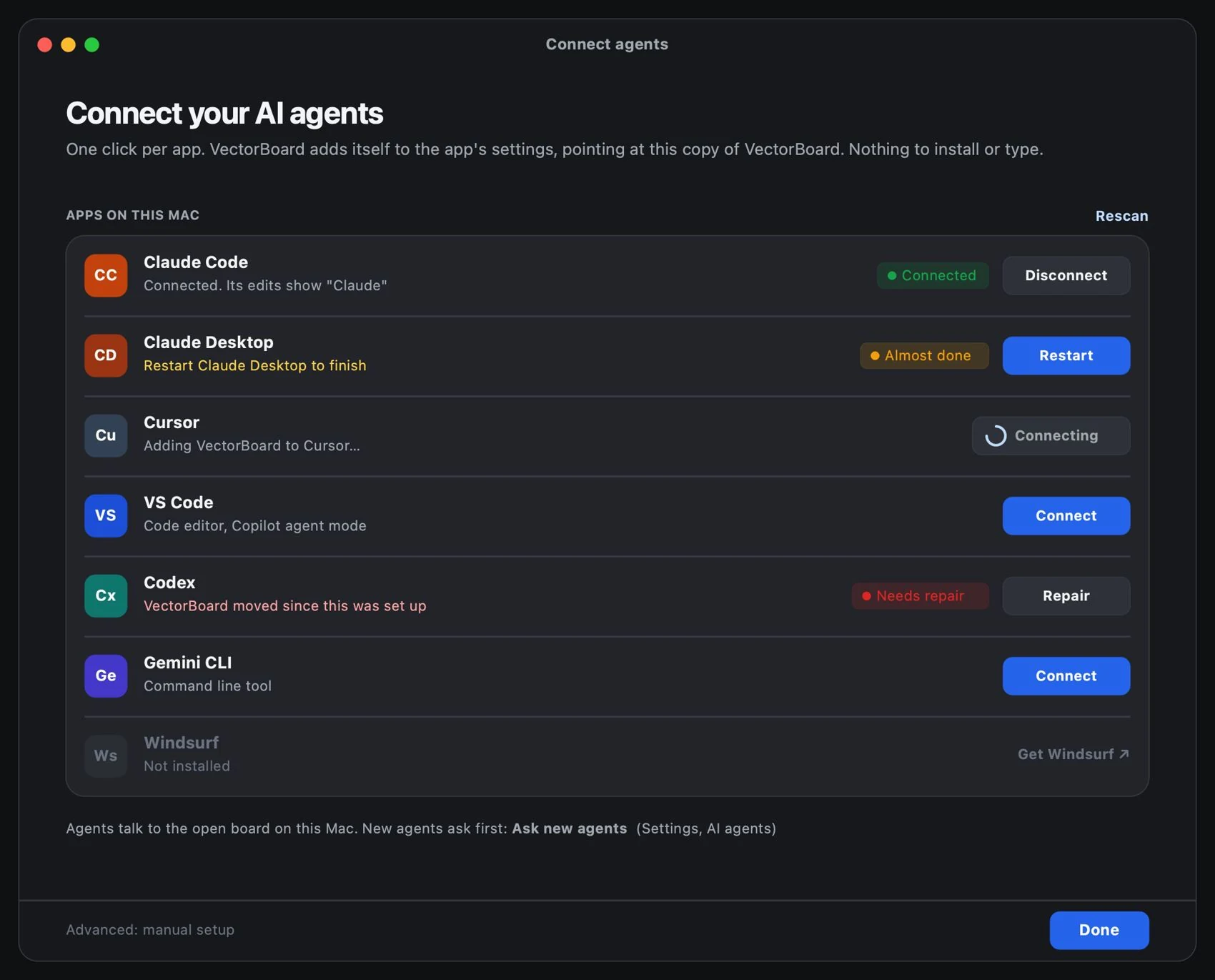
- Open or refresh the client's MCP list when prompted. Check that VectorBoard is available; signing in alone does not guarantee the connection is complete.
- Run a read test: ask it to identify the authorized board and list its pages, without changing anything. Compare the answer with the app.
- To test edits, use a practice board. Ask for a single note with exact text on the page or section you name. Review the approvals.
- Check the note, its location and its authorship. Undo the test and verify the original state.
- Use connection repair if an app path changes. Disconnect or reduce access when it is no longer needed.