
Getting started
The context bar and panels
The is the set of controls that appears when you select content. It is not the main bar: the main bar is for choosing a tool, while the context bar lets you modify the selected object.
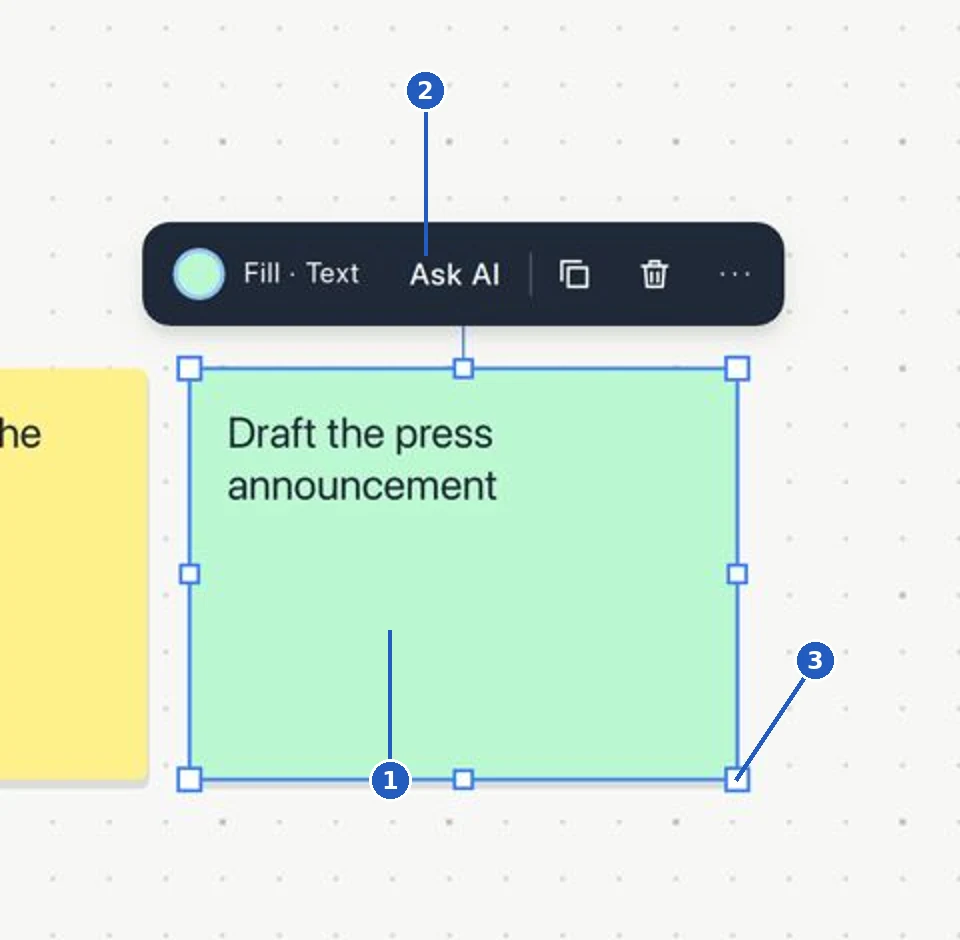
Detail: 1 selected note; 2 context bar; 3 size controls.
In this detail, Fill changes the color, Text opens its controls and Ask AI acts on the selection. The overlapping squares duplicate the note; the trash can deletes it; the three dots open more actions. The square handles change its size; dragging the note moves it.
| Selection | Controls | What changes |
|---|---|---|
| Text | Font, size, color and alignment | The appearance of the selected text. |
| Sticky note | Color, size and arrangement | The note and its position among other notes. |
| Shape | Fill, border, type and text | The selected shape, not all the shapes on the board. |
| Image | Crop, flip and effects | The image that is displayed. |
| Plain table | Rows, columns and style | Its structure and presentation. |
| Data table | Cell/range controls and Create chart | The data selection or a new chart linked to it. |
| Section | Color, sort, fit and lock | The area or the organization of its content. |
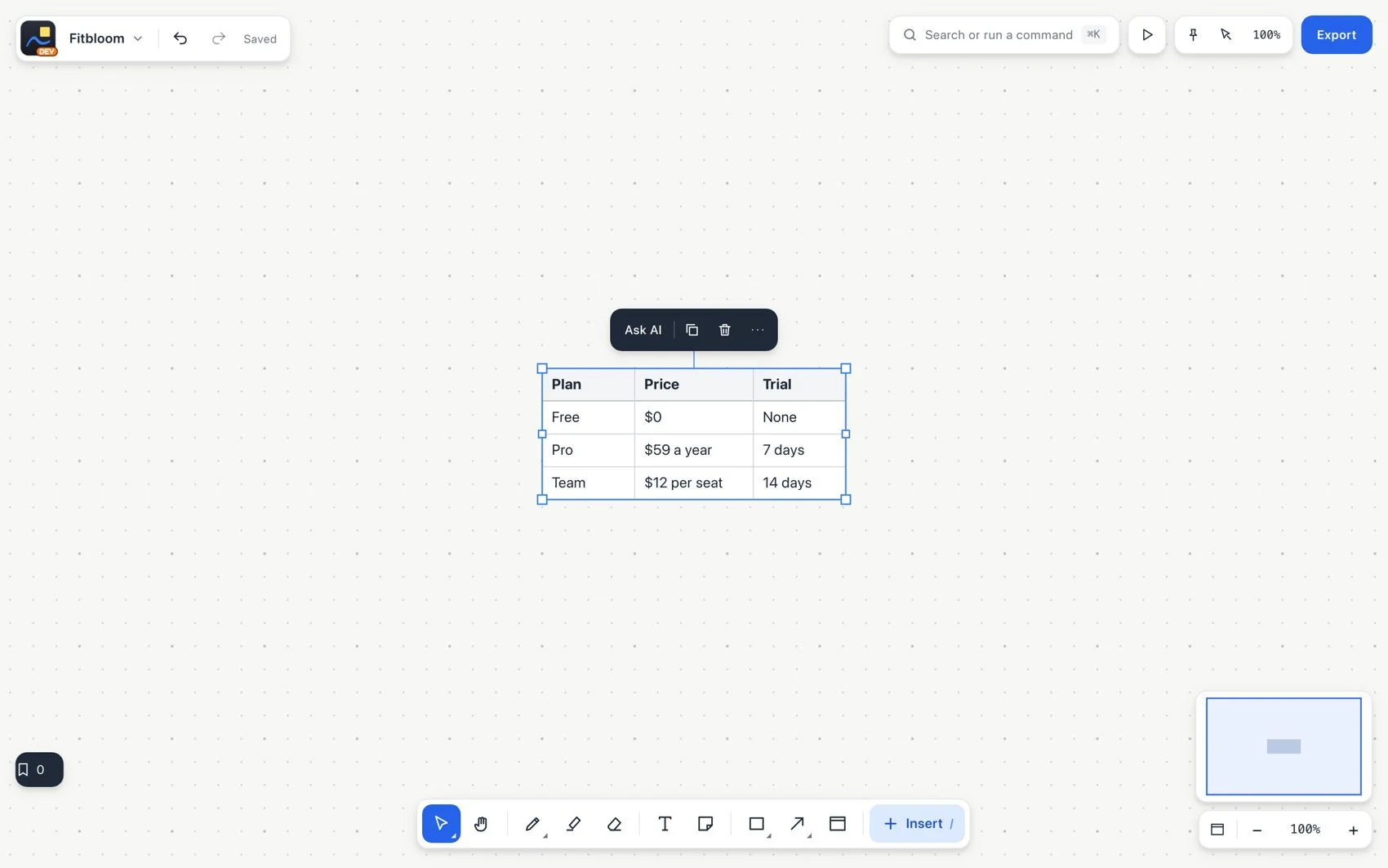
- Choose Select and click the element. Check the selection outline.
- Review the context bar and choose the control for the property you want to change.
- Apply a change and check the selected object. Use Undo if the result is not what you wanted.
Panels organize information: Pages shows the work pages, Sections lists the named areas, Bookmarks saves destinations and Insert shows the element types. A menu offers actions; a dialog asks for information before completing them. Closing a panel does not delete its content.