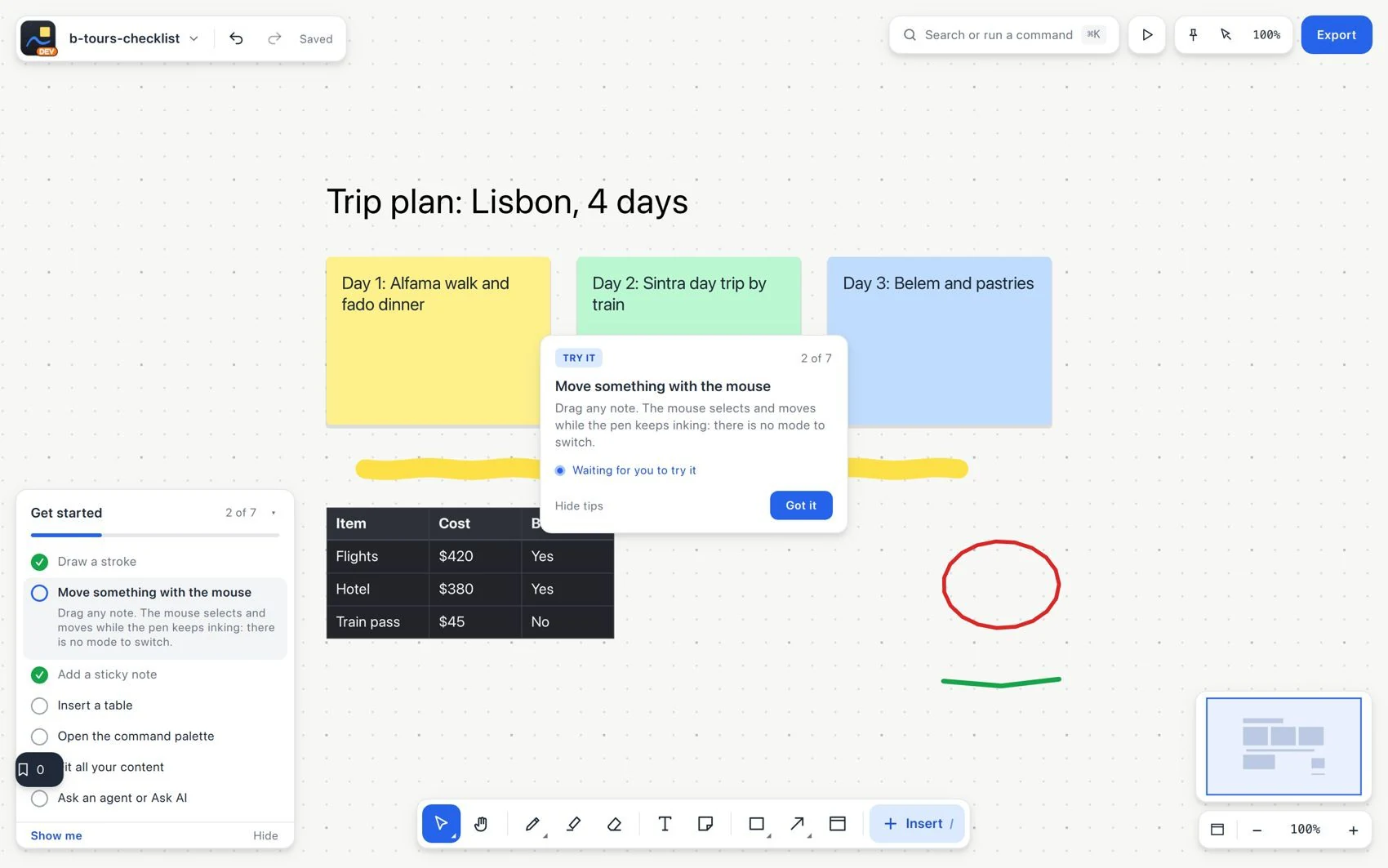
Getting started
Create and reopen your first board
Use Mac, Windows or iPad for the full editor. iPhone is the companion for capturing, reading, making simple changes and presenting. Have your Apple, Google or email access ready; this first exercise does not need AI.
- Open VectorBoard and create an account or sign in. Complete the sign-in setup and choose the language.
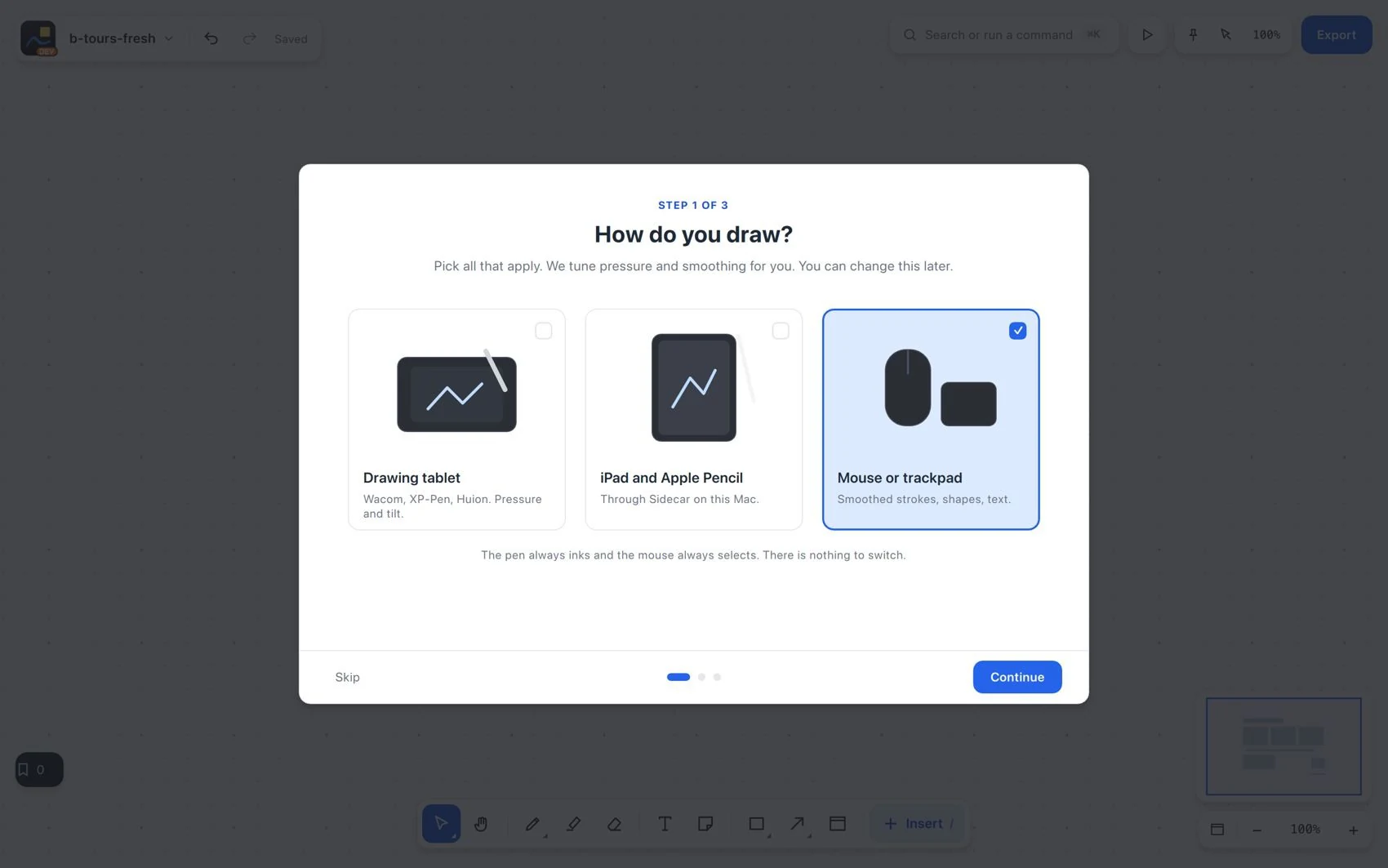
- Choose a blank board, a template or an import. To practice, create a blank board called
Workshop practice. - Choose Sticky note (S), click an empty space and type
Decide the workshop topic. Go back to Select (V). - Choose Section (F), draw an area around the note and name it
Ideas. Move the section and check that the note goes with it. - Choose Text (T), click outside the section and type the project goal.
- Check the save indicator. Go back to Home, find the board by its name and open it again.