
Every tool on the toolbar
Pen
Pen creates freehand strokes for drawing, writing and annotating. With a compatible pen, pressure and tilt affect the stroke. With a mouse or trackpad, pressure is simulated from the movement. Strokes are editable board content, not a permanent change to the PDF underneath.
#How to use it
- Choose Pen and adjust style, thickness and color.
- Draw or write on the board. Use short strokes for details and a comfortable zoom.
- To recognize a geometric shape, hold the pen still at the end of the stroke. Check the recognized line, arrow or shape.
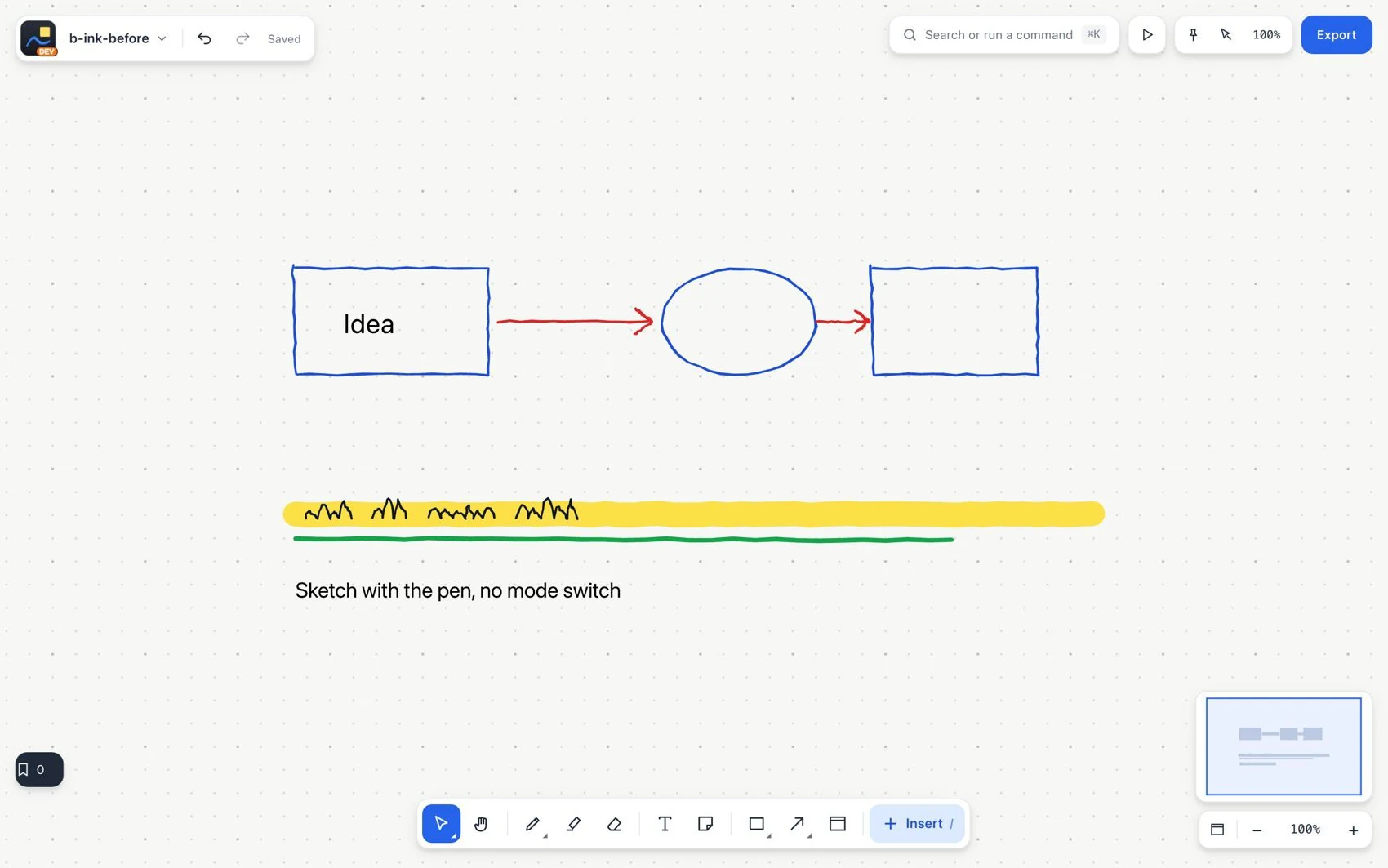
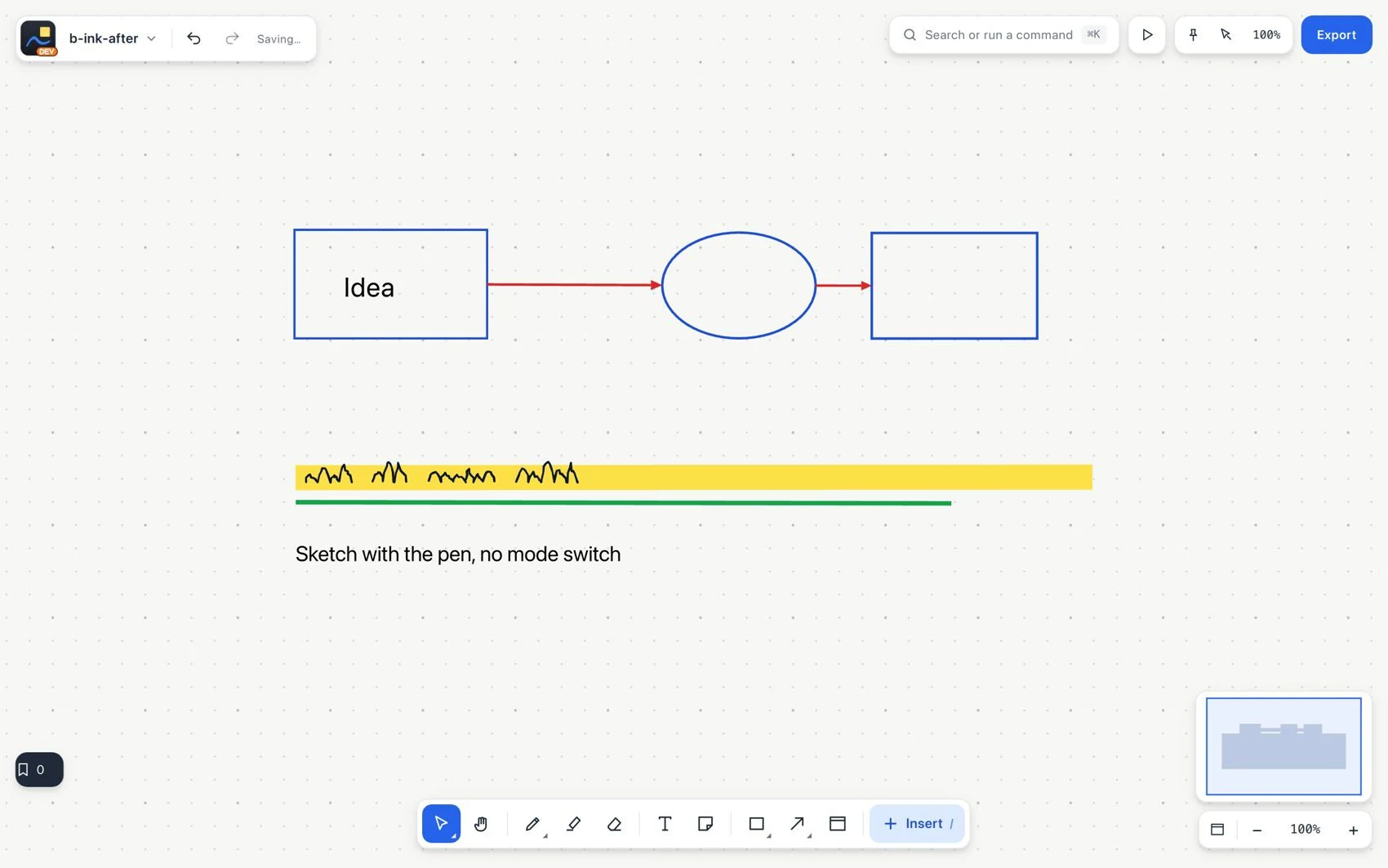
Turn a sketch into precise shapes
- Use Undo to recover the original stroke or Eraser to remove part of it.
#Common mistake and how to fix it
A digital pen can draw while a pointer tool is active. A stroke does not mean the mouse tool has changed. To type with the keyboard, use Text. For structured relationships, use Connector instead of a hand-drawn line.