Ai and Orin
Ask Orin and manage a thread
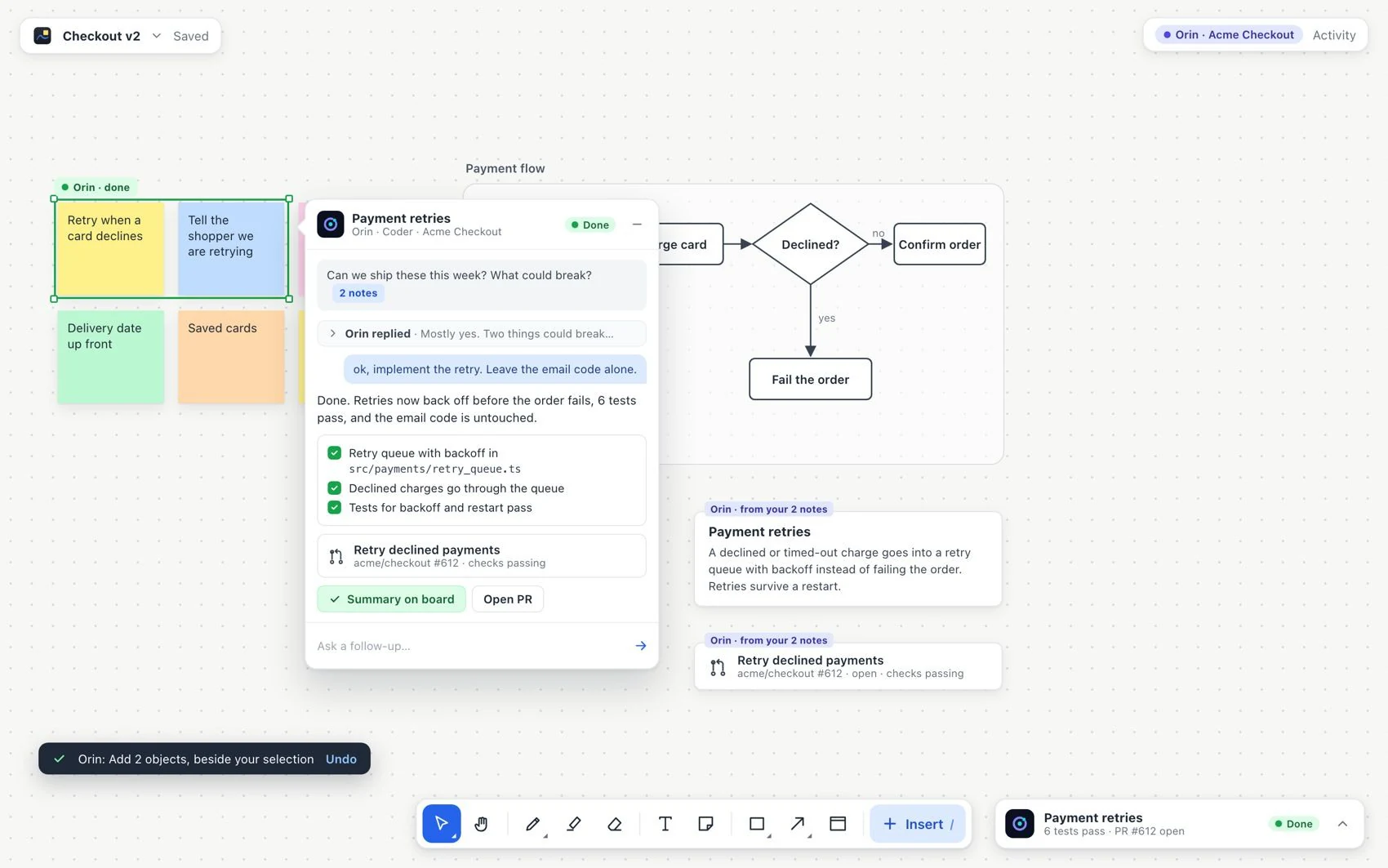
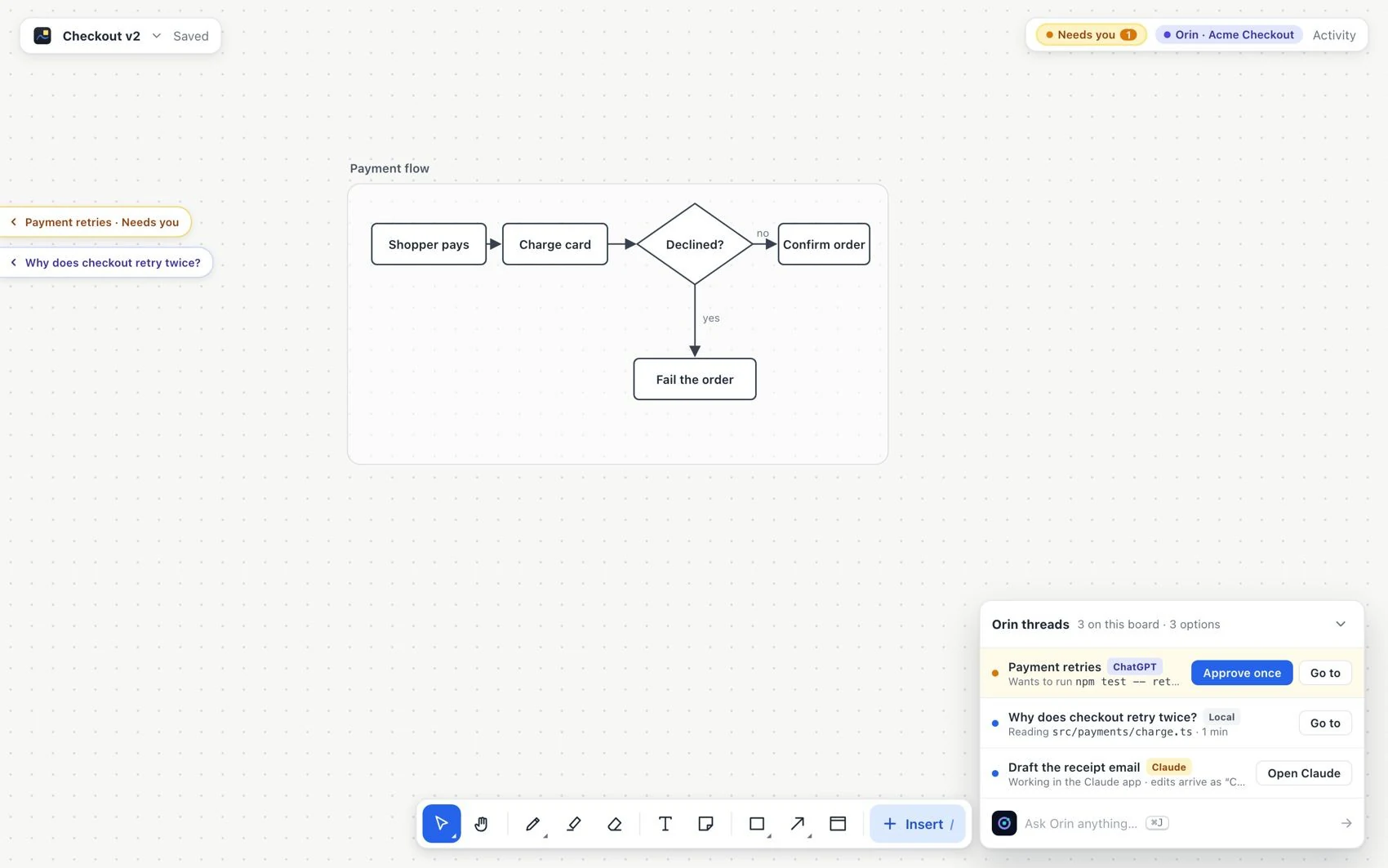
A is a persistent conversation tied to the snapshot of the content you sent. The prompt bar holds the request and its controls. The lets you follow the work while you navigate. Needs you means your answer or approval is missing.
- Connect the Orin option you chose and check its status in the connection indicator.
- Select the notes, shapes or section for the task. Click Ask Orin in the selection controls or use the shortcut shown.
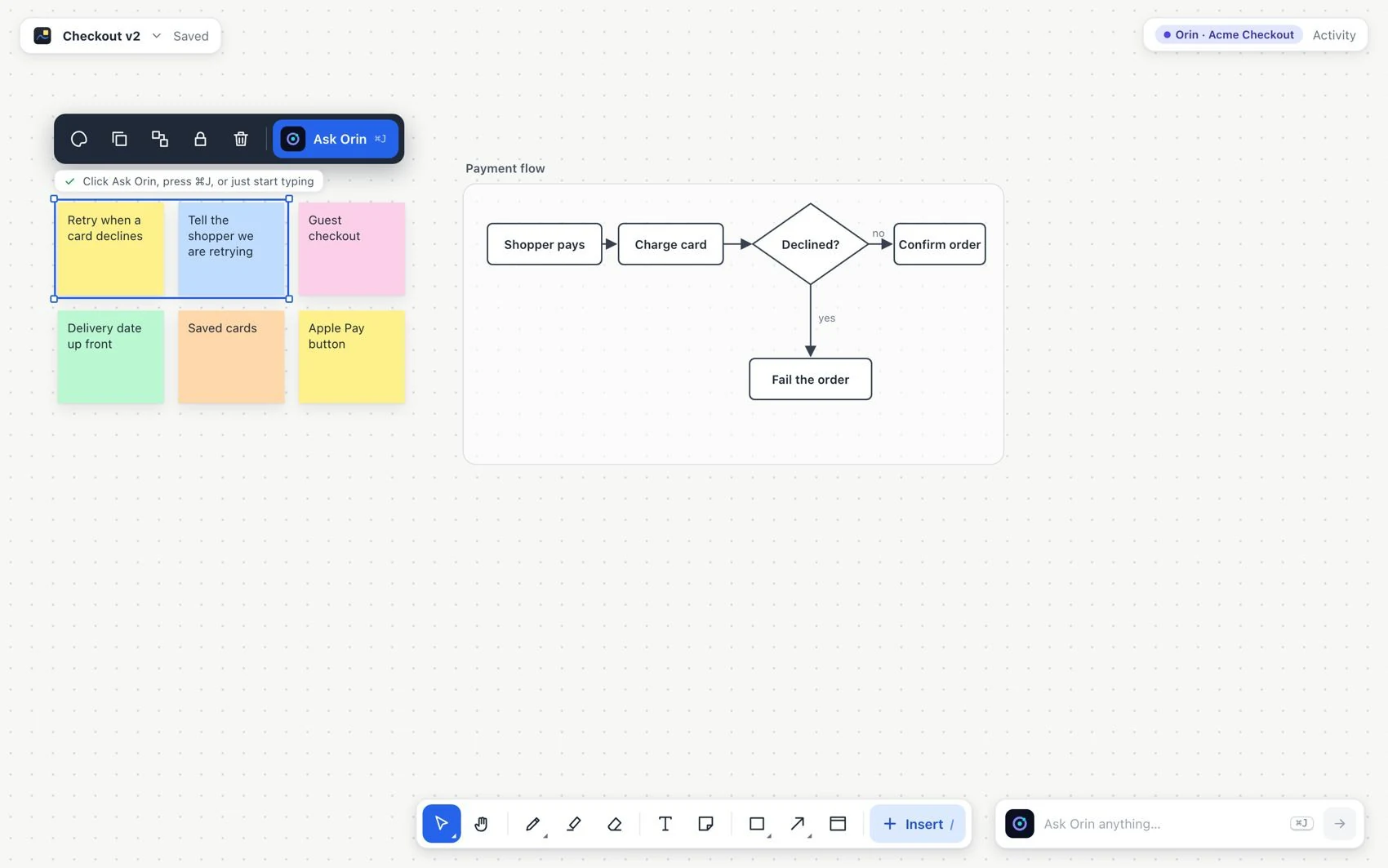
- Write the request and read the line that explains what will be sent. Choose the thread's connection.
- Pick Auto, Plan first or Just answer and send.
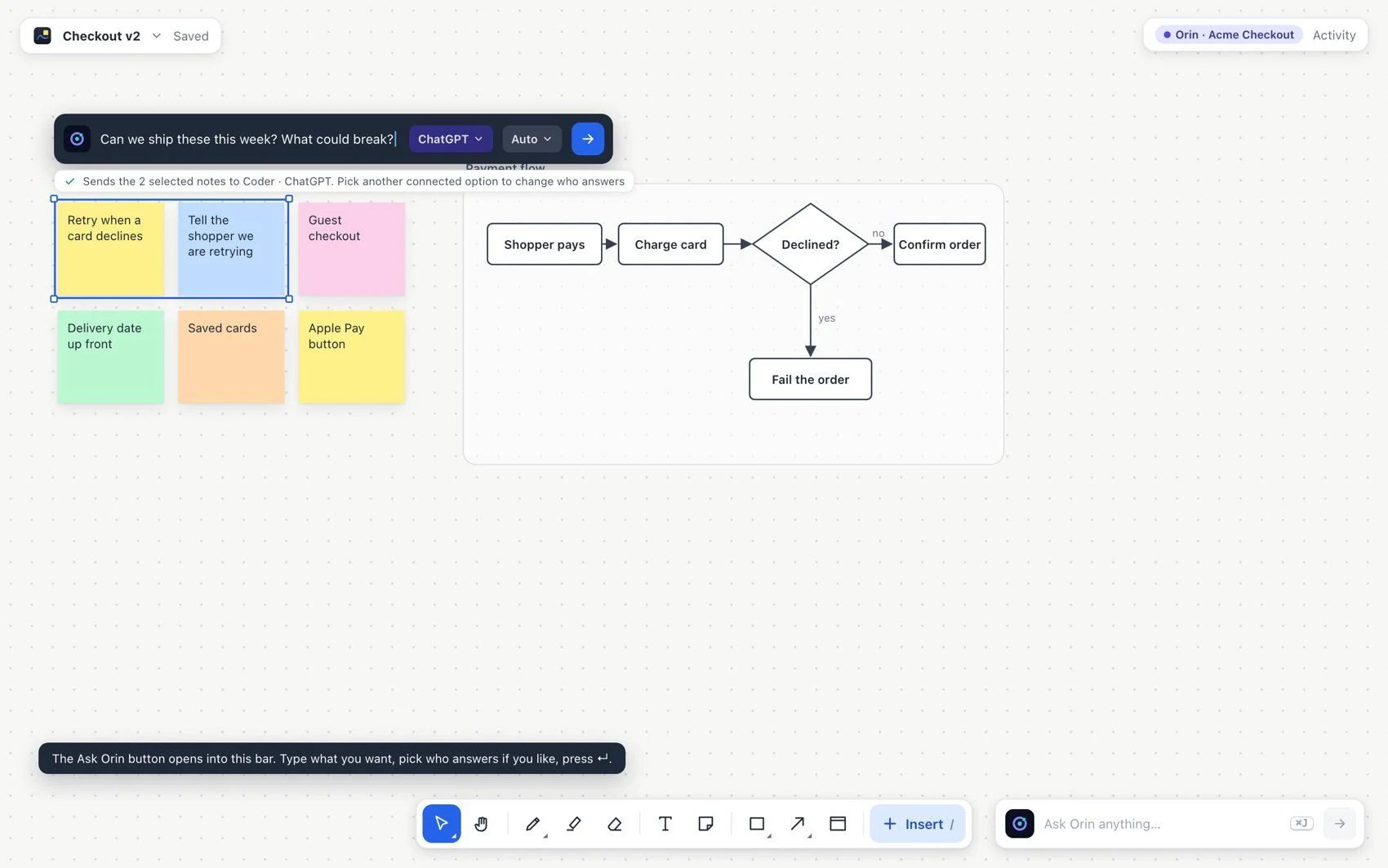
- Read the answer next to the selection. Choose Implement it, Plan it first or Put answer on board, or write another step.
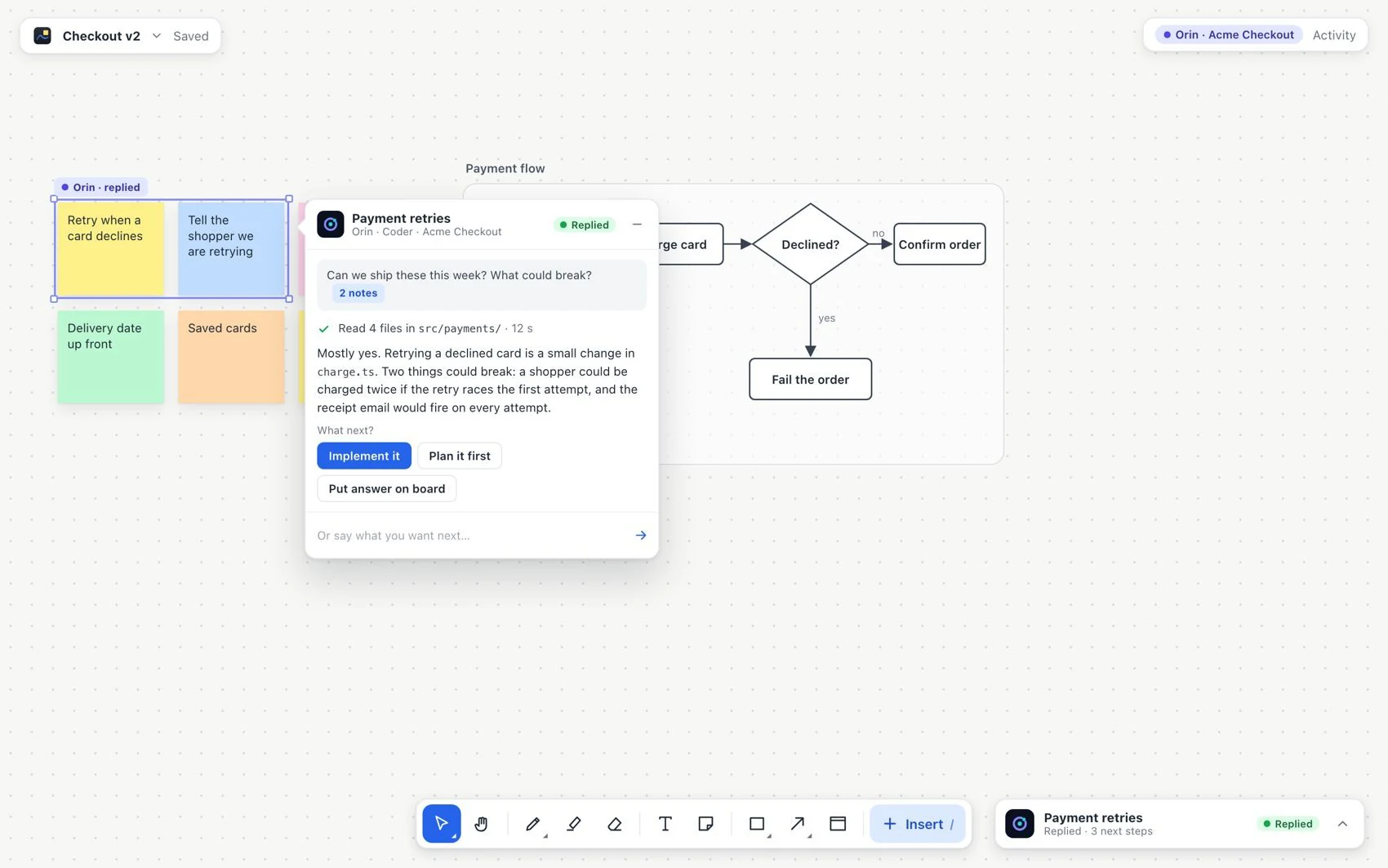
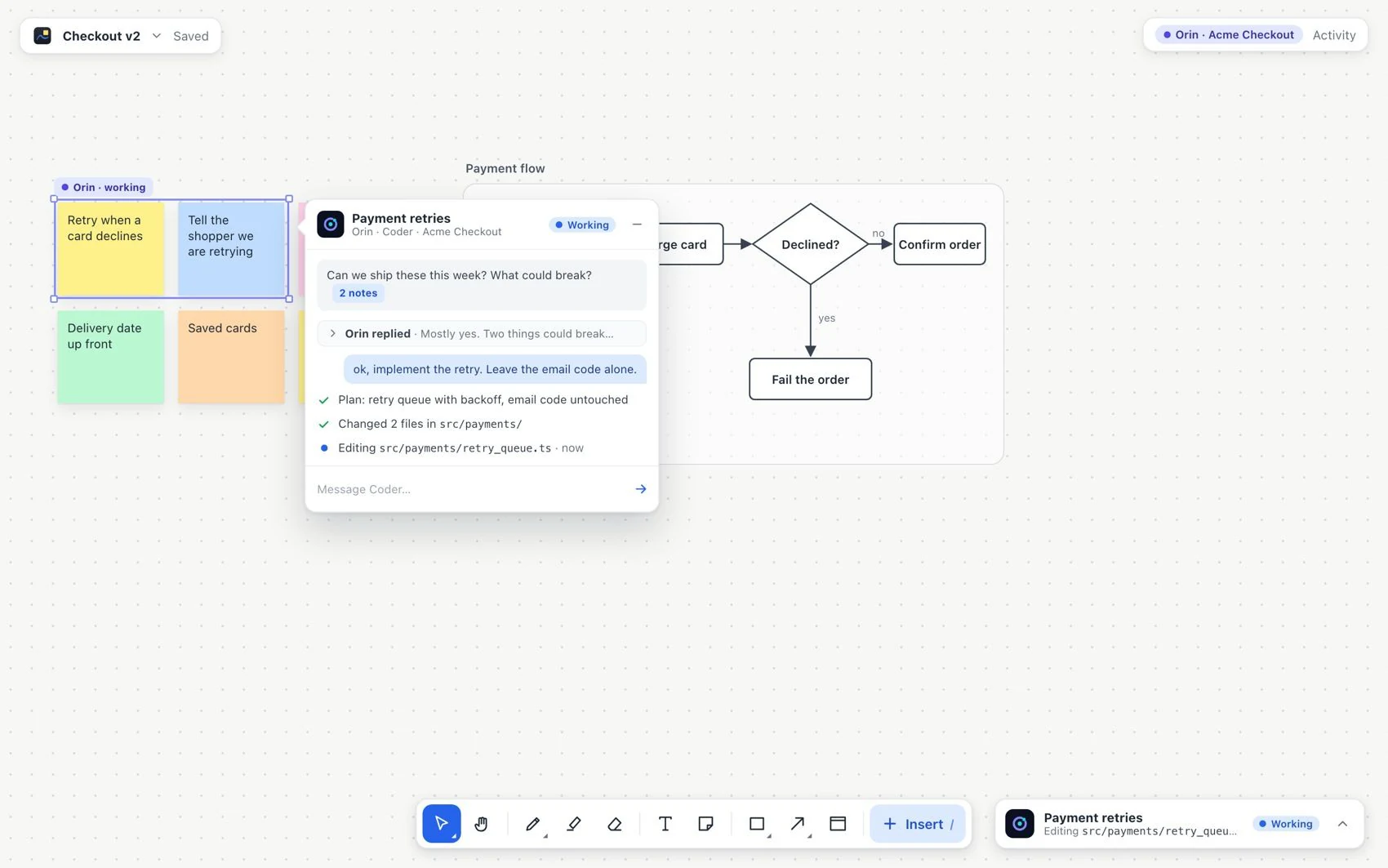
- Follow the steps and the status from the thread or the tray. Orin can keep going even if you close the VectorBoard window.
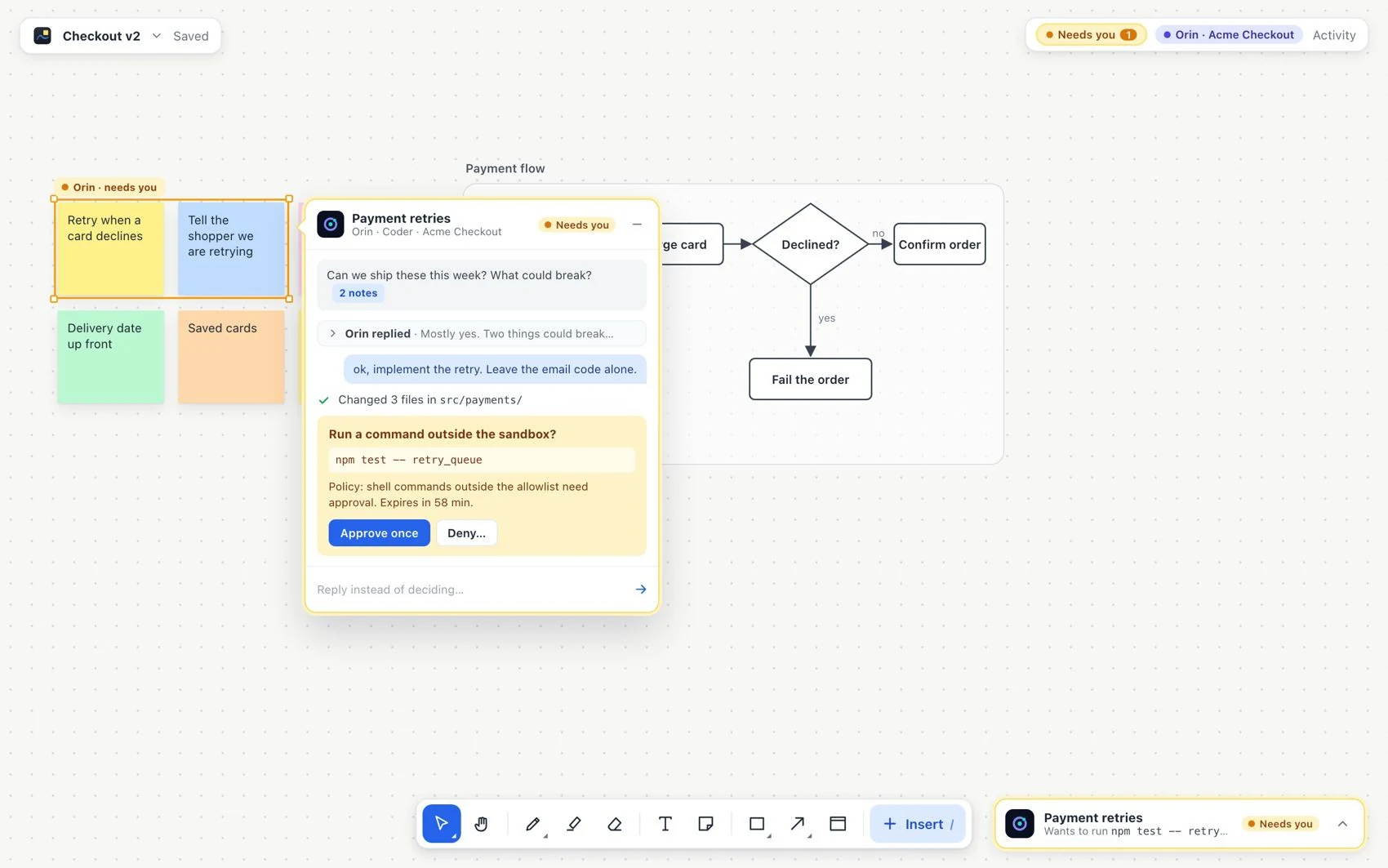
- When an approval appears, read the exact action, the reason and the expiration. Approve or reject; the amber state is not necessarily an error.
- Choose Put on board to accept the result. Check the objects and their authorship; use Undo if you do not want to keep the result on the board.