
Files, devices and settings
Navigate on Mac, Windows, iPad and iPhone
The same board format works across devices. Mac and Windows offer the full desktop workspace. iPad is a full editor with gestures and Apple Pencil. iPhone is a companion for capturing, reading, making simple changes and presenting.
#Mac / Windows
Use Select and Hand, the command search, the bottom bar and the contextual controls. Window options include keep on top, opacity and click-through.
#iPad
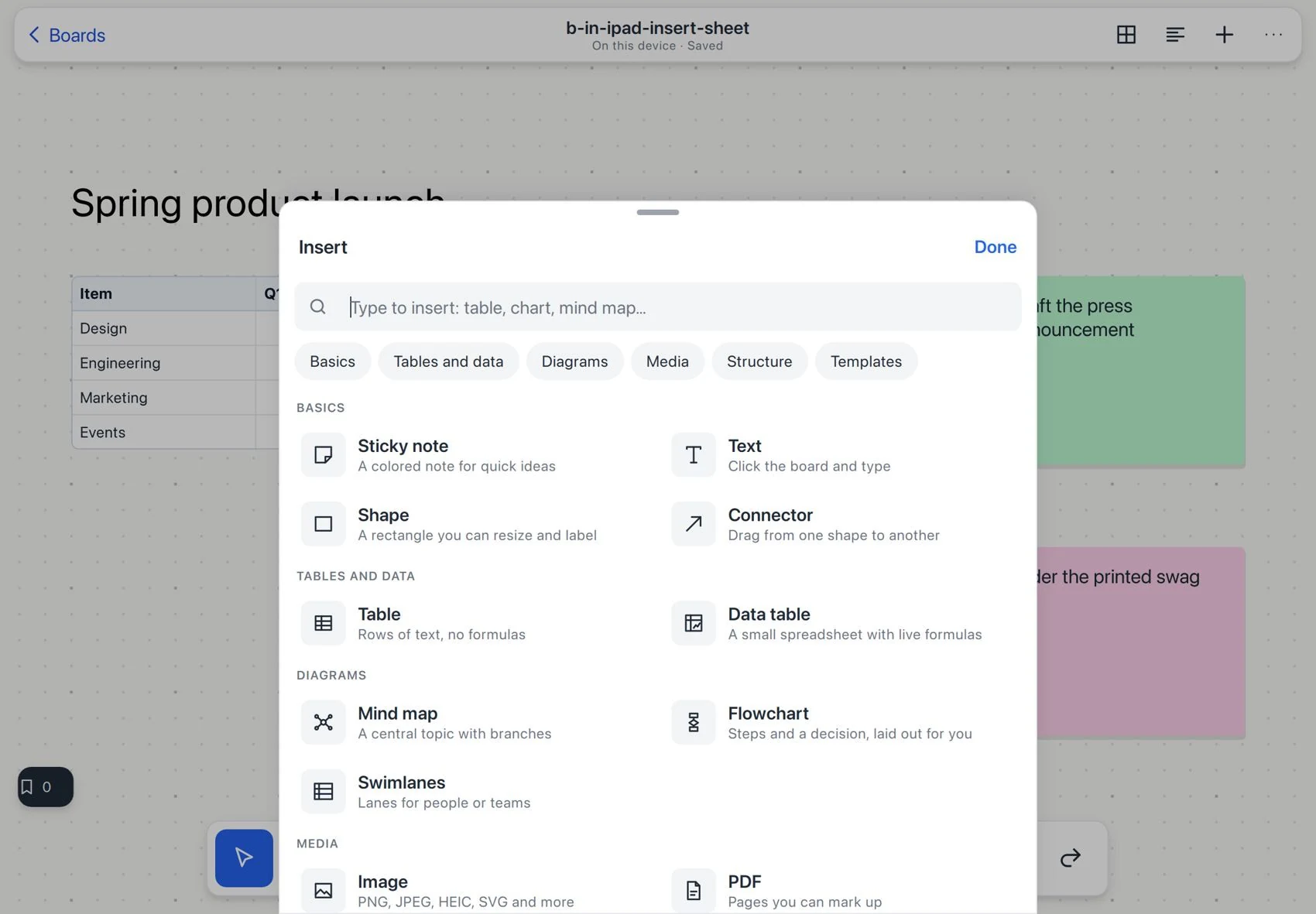
Navigate with gestures, zoom with two fingers and draw with Apple Pencil. Insert opens as a bottom panel with large rows and categories. Keyboard and trackpad are supported.
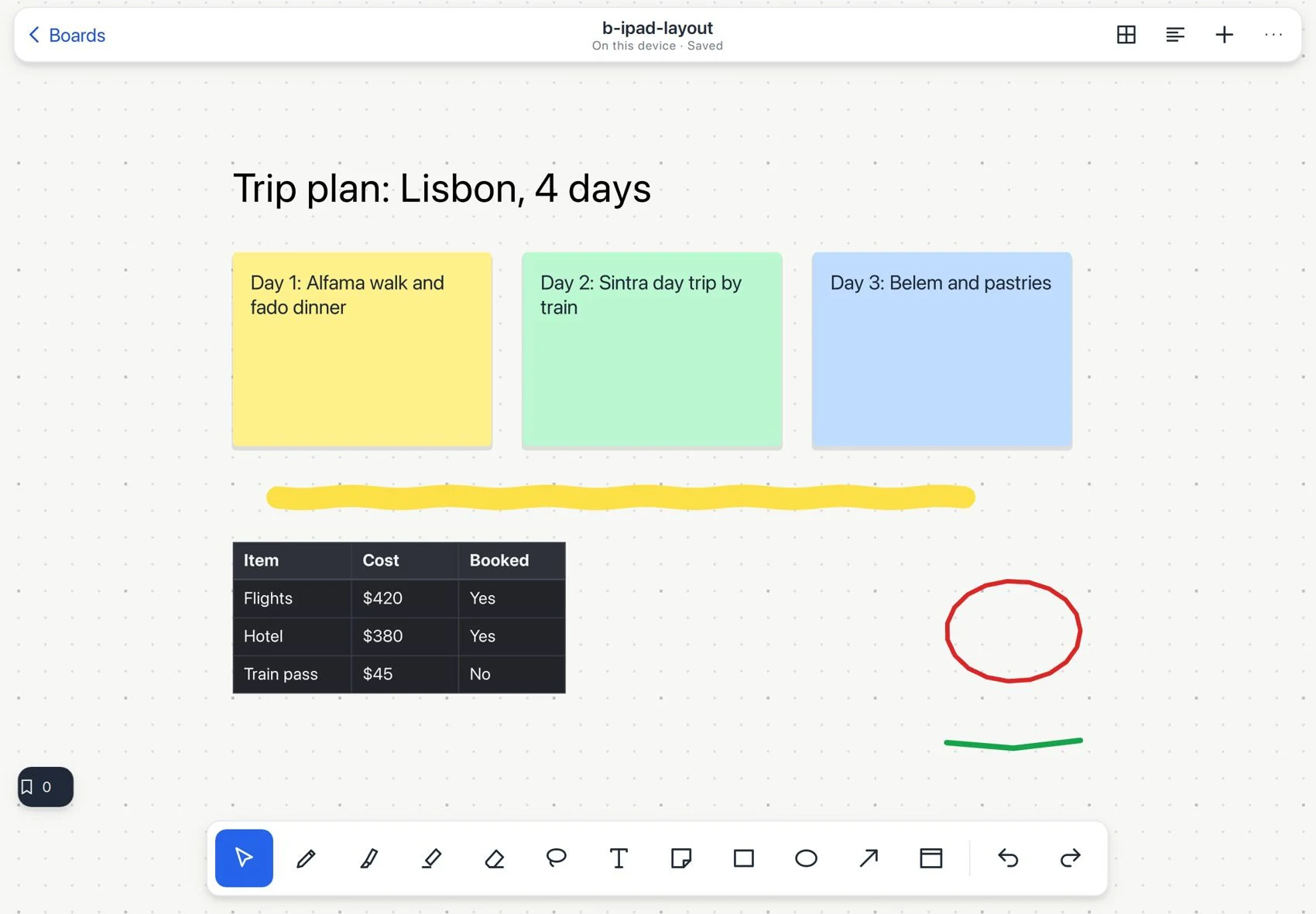
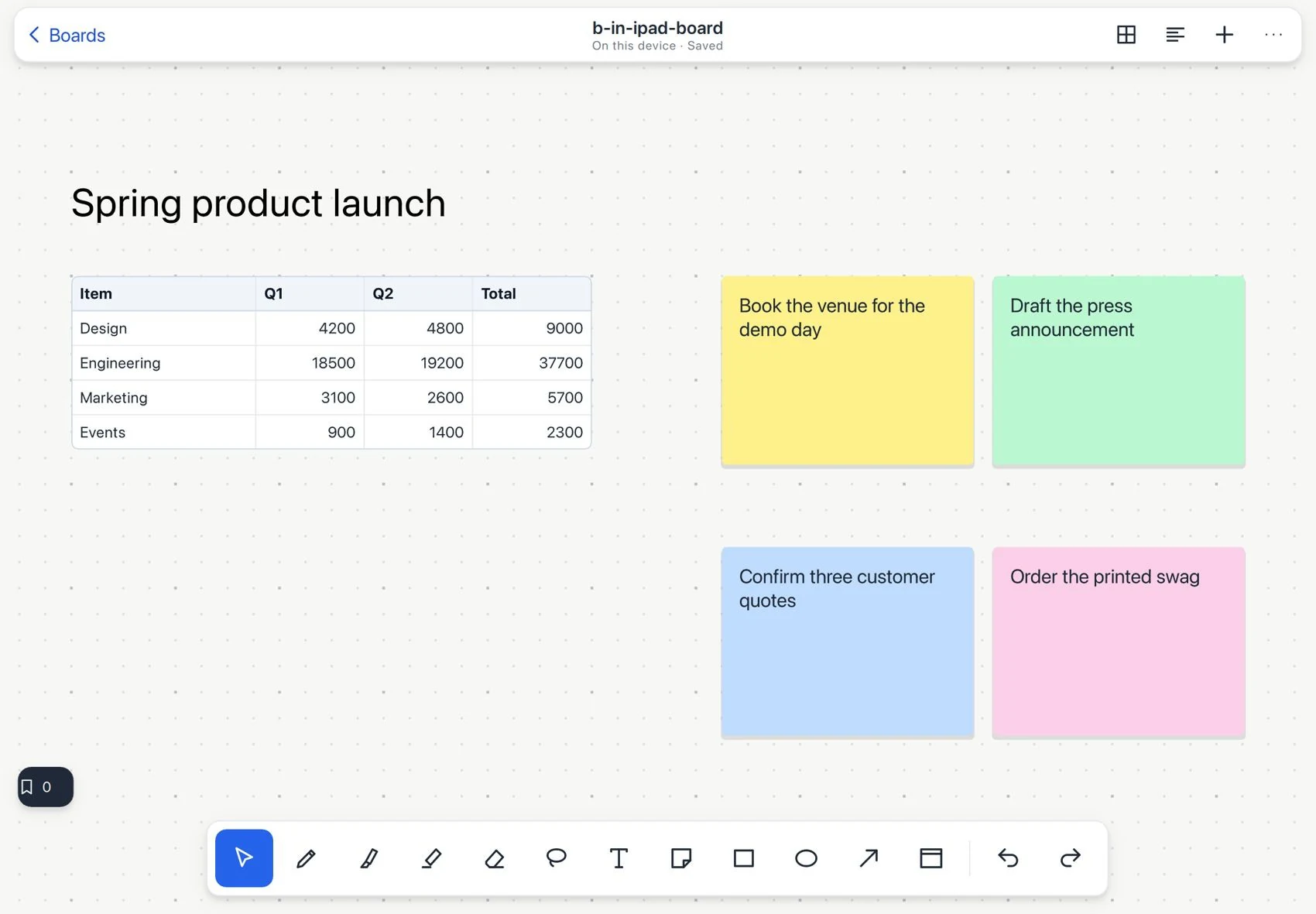
Edit the whole project on a tablet
#iPhone
Use the bottom tabs for boards and other views, and the add button to capture/create. The compact bar offers Select, Pen, Eraser, Text and Sticky note. Use Reader for long content.
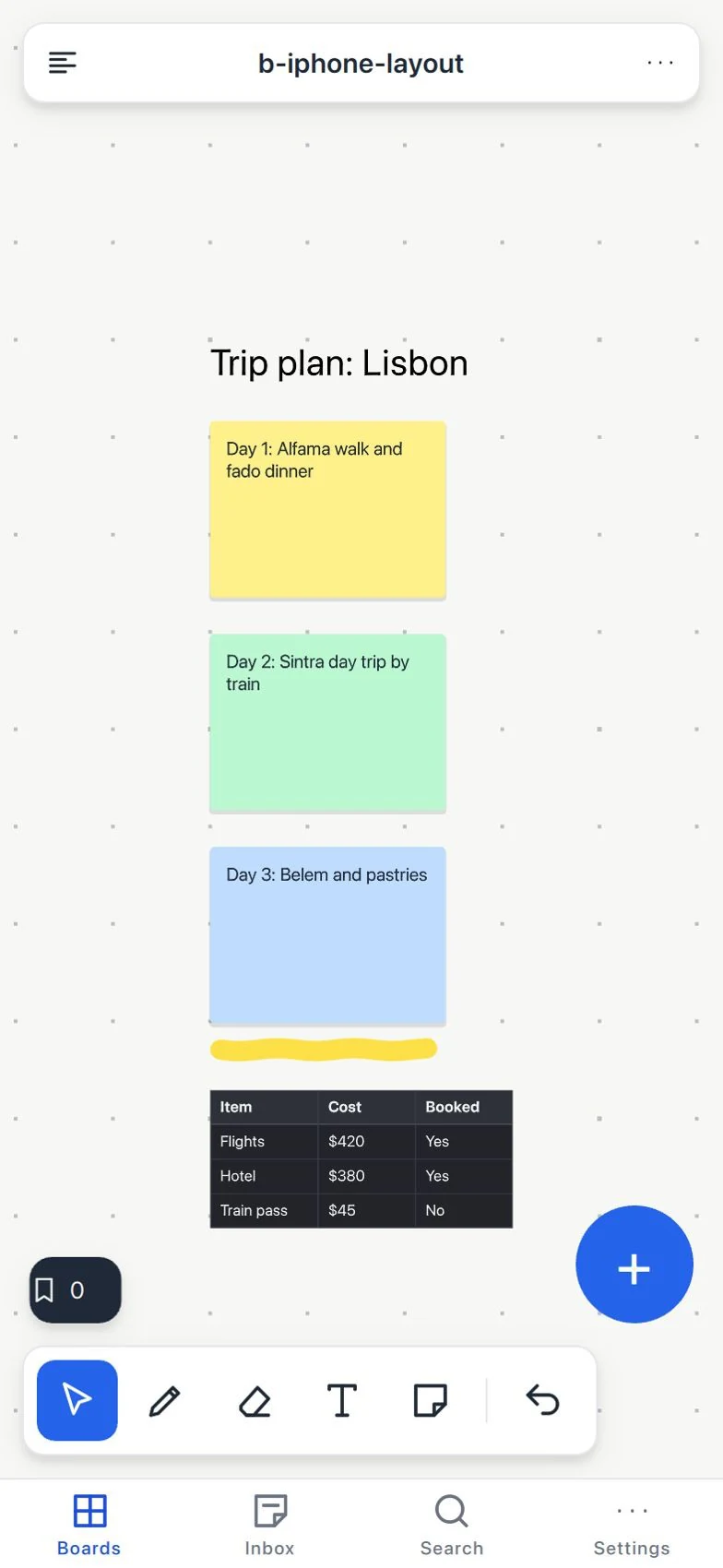
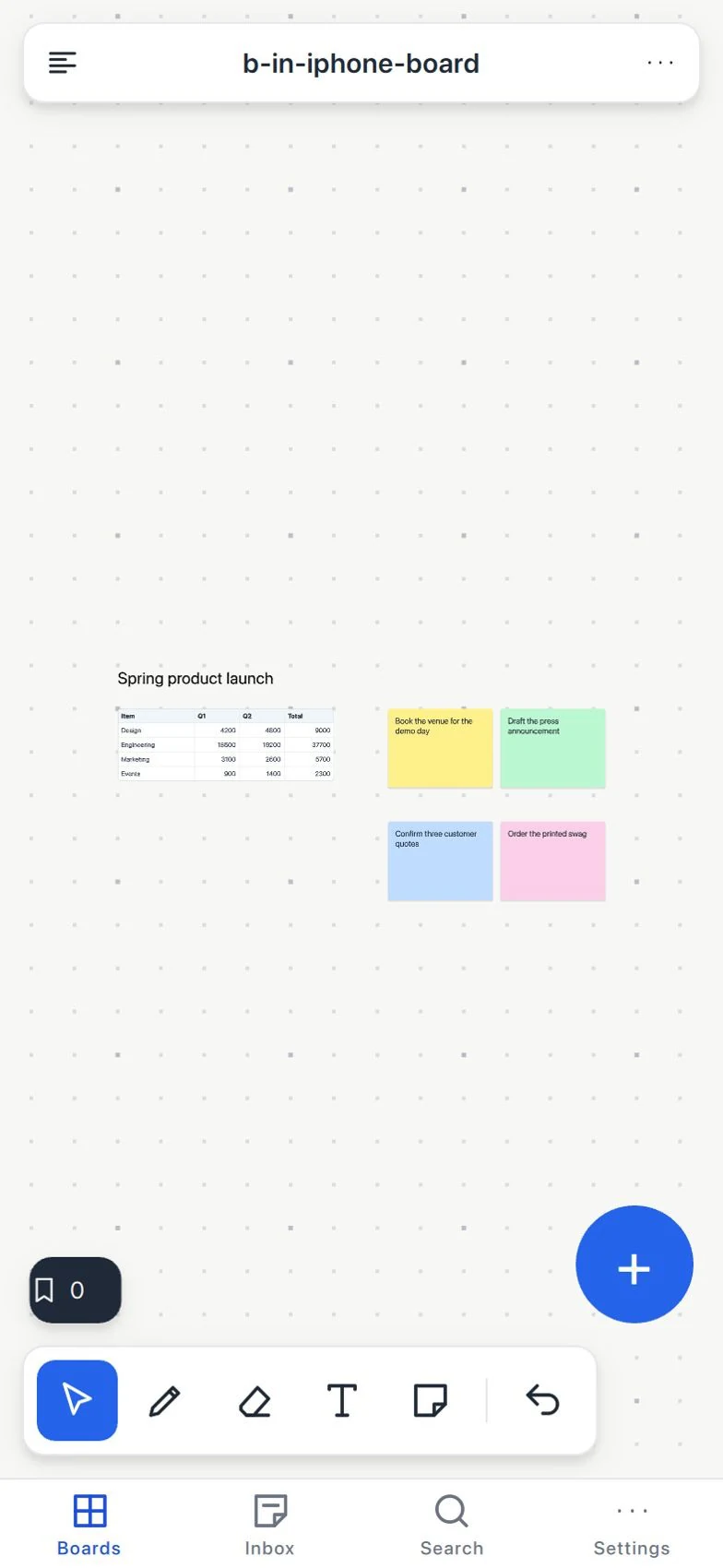
Make simple changes with one hand
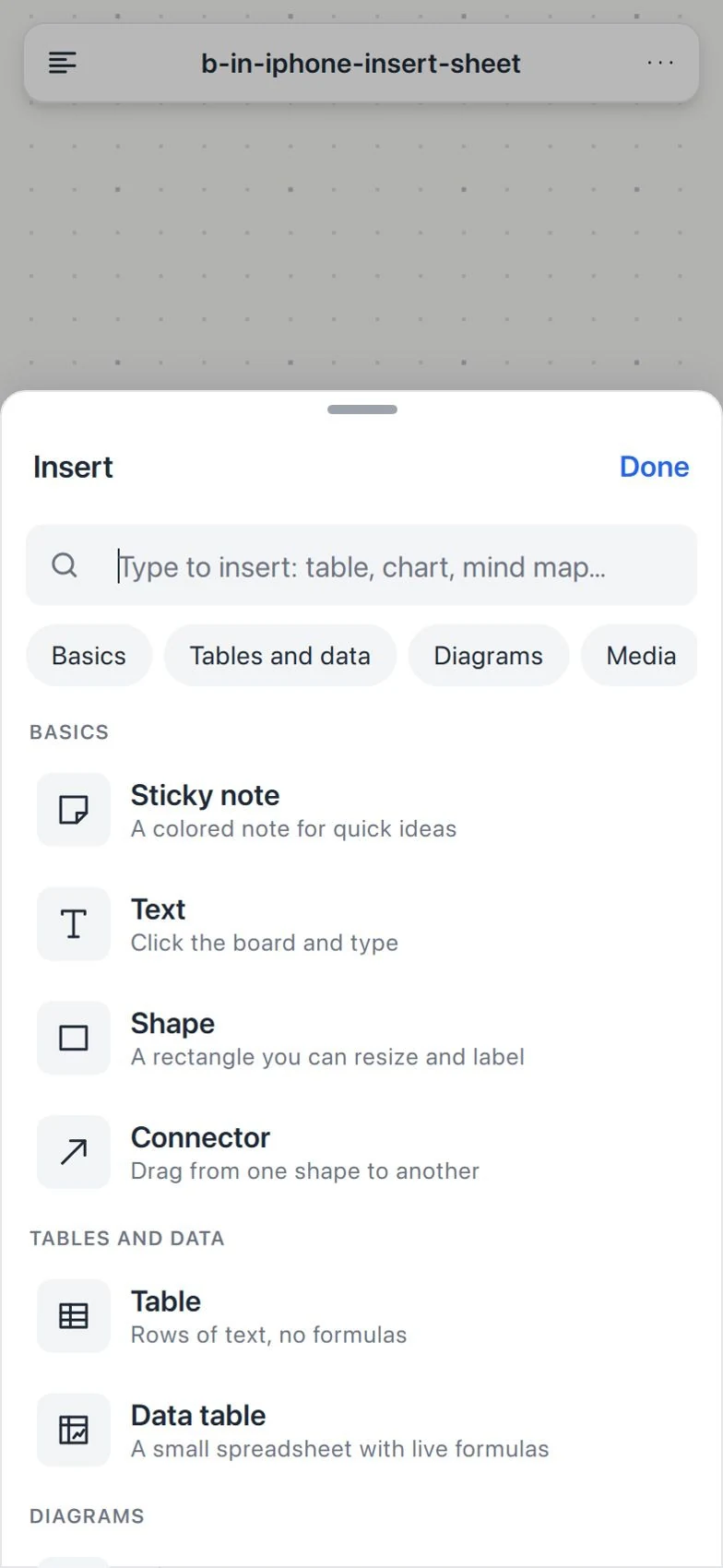
#Touch gestures
| Gesture | Function |
|---|---|
| One finger | Pan or move, depending on the tool and the target. |
| Spread/pinch two fingers | Change zoom. |
| Gesture | Function |
|---|---|
| Two-finger / three-finger tap on iPad | Undo / redo. |
| Press and hold | Open the contextual menu. |
| Double tap or press on a compatible Pencil | Run the configured action. |
Use Pro or Team sync to continue across devices. Tool settings, shortcuts and colors sync with your account on all plans. Capture on your phone, organize on desktop, draw on iPad and present from the right device.