
Getting started
Pan, zoom and recover the view
To is to move your view across the page. changes the size at which you see the same content. Neither action changes the position or size of saved elements.
- To pan with the mouse, choose Hand (H), click the board and drag. Release when you see the area you need.
- To actually move an object, go back to Select (V) and drag the object.
- Use the zoom plus and minus buttons to move closer or farther away. The percentage helps you stay oriented; 100% is the reference view.
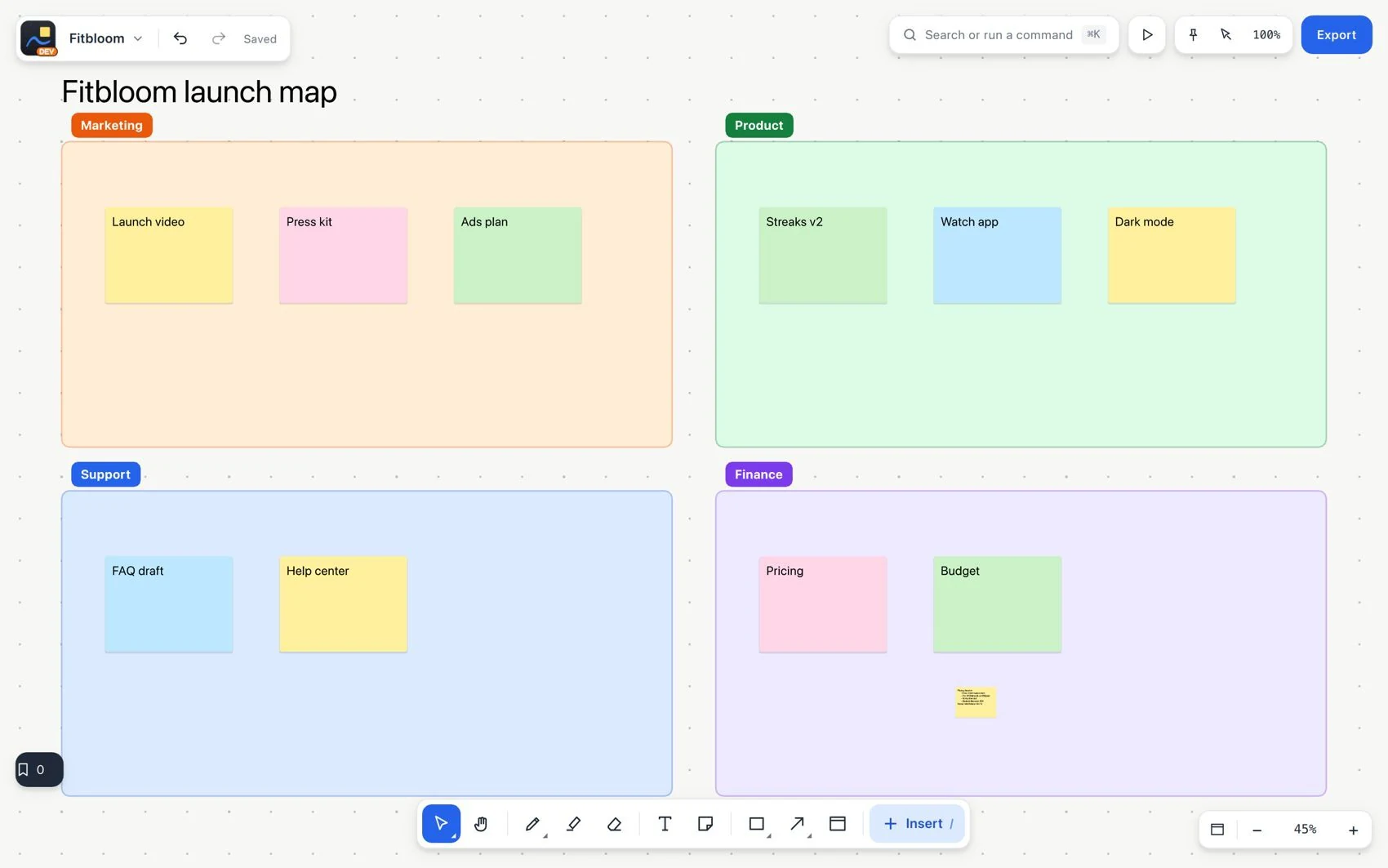
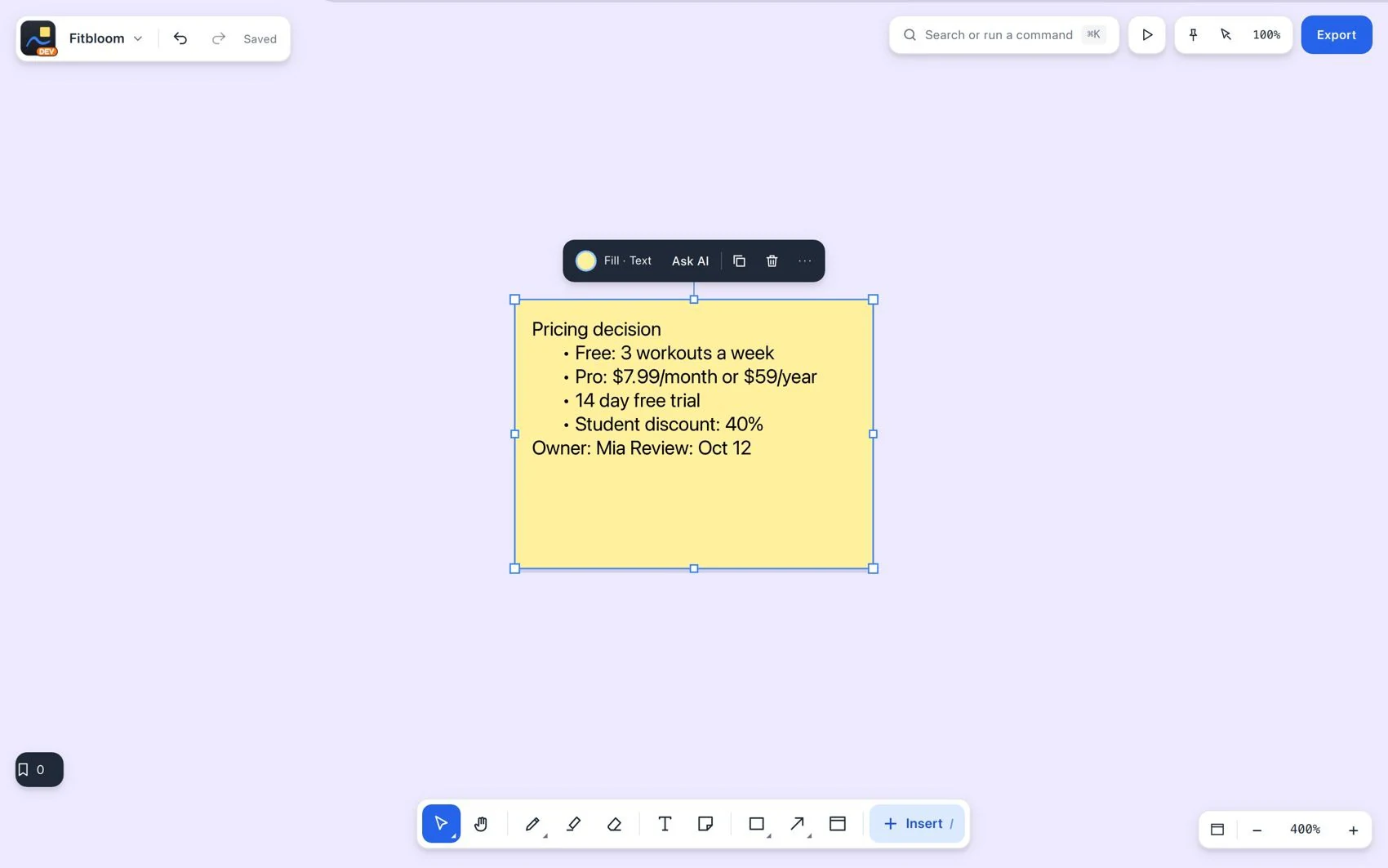
Read information up close
- On iPad or iPhone, spread or pinch two fingers to change the zoom. Use Hand when you want to pan without confusing it with moving content.
- If you cannot find your content, run Fit content from the view controls or the command search. To focus on specific objects, select them and run Zoom to selection.
- Use the minimap to locate the visible area. Return to a previous view with the back and forward navigation controls.